

Switching Agencies? Here’s How Your Tracking Breaks
If you’ve changed who manages your ad accounts more than once, there’s a good chance your tracking has been rebuilt on top of itself. Nobody told you, and nothing looks broken. But the numbers you’re making decisions on may not be accurate.
We recently took over an account where this had happened approximately three times.
- The brand started with a full Google Tag Manager (GTM) tracking set up completed by us.
- Hired someone in-house to run paid media who installed the Google & YouTube App
- When that person moved on, the brand brought in a freelancer: Who either did nothing, or just added on top of the existing settings
By the time the account landed back with us, the account was a complete mess. What was previously a highly efficient revenue driving ad account was now struggling to generate daily performance.
Here’s what we found, why it happens, and what to ask before your next handoff.
How Tracking Gets Stacked
Nobody sets out to duplicate tracking. It happens because each new person does the reasonable thing from where they’re standing.
The new person doesn’t trust what’s there. When you inherit an account, you don’t know who set up the existing tags, how they were configured, or whether they work. The safest-feeling option is to install your own setup, the way you know it works.
Removing tags feels riskier than adding them. Deleting a tag you don’t fully understand could break conversion tracking altogether. Adding a new one feels harmless. So the old tags stay “just in case.”
Everyone has a preferred method. One person uses the Shopify Google & YouTube app. The next prefers Google Tag Manager. The next hardcodes a tag into the theme. All three methods work. All three running together is the problem.
Handoffs are rarely documented. Most transitions happen quickly, sometimes after a relationship has ended badly. Nobody writes down which tags are live, which conversion actions matter, or what was already deprecated. Access to all platforms such as Google Tag Manager often get overlooked.
On this account, that meant three separate purchase tracking setups for Google Ads: GTM + Google & YouTube App (Which was also implemented incorrectly), overlapping Microsoft Ads tags, and multiple Google Analytics 4 (GA4) configurations, all firing on the same checkout.
What Stacked Tracking Actually Does
The frustrating part is that duplicated tracking doesn’t look like a problem. Campaigns keep running and conversions keep recording. The damage is more subtle than that.
Your platforms report more sales than you made. If two or three tags record the same purchase, Google Ads may count it more than once. Your ROAS looks great in the dashboard. Then you open Shopify and the revenue isn’t there. Depending on your Ads x revenue ratio your ad revenue might not even exceed the revenue in Shopify.
Smart Bidding learns from bad data. Google’s automated bidding optimizes toward whatever you tell it counts as a conversion. If that signal is inflated or inconsistent, the algorithm makes spending decisions based on results that didn’t happen. You end up scaling campaigns that look profitable but aren’t.
Nobody trusts the reporting. When platform numbers, GA4, and your store backend all disagree, every performance conversation turns into an argument about which number is right. That’s time not spent improving the account.
Your site gets slower. Every extra script adds load time, and checkout is the worst place for it.
Fixing it later costs more. The longer bad data sits in an account, the more of your conversion history is built on it. Cleaning up eventually means a period of re-learning, and it’s better to take that hit sooner rather than later.
Signs This Has Happened to You
You don’t need to be technical to spot the warning signs. If you’ve switched agencies or account managers in the last few years, check for these:
Platform conversions don’t match your store,
Compare last month’s purchases in Google Ads against actual orders in your store. Google reporting fewer is normal, since it only counts orders that came from an ad click. Google reporting more than your total order count is not, and that’s a clear duplication signal.
For a closer comparison, look at Google Ads conversions against the Google Ads traffic in GA4. These two count the same purchases, so they should be reasonably close. A difference of 10 to 15 percent is expected, because the two systems date and attribute conversions differently. If Google Ads is reporting 20 percent or more above GA4, and the gap holds month over month, duplication is the likely cause.
You see several conversion actions with similar names, in Google Ads, go to Goals → Conversions → Summary. If you see “Purchase,” “Purchase (1),” “Google Shopping App Purchase,” and “GA4 Purchase” all side by side, that’s a strong hint that more than one setup is live.
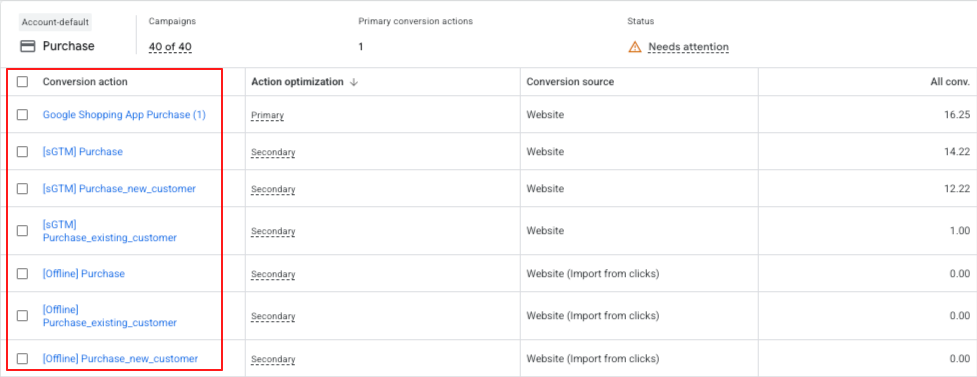
Nobody can tell you what’s installed. Ask whoever manages your account which tags are firing on your checkout and where each one comes from. If the answer is vague, that’s your answer.
Conversions are marked as “Primary” more than once, only primary conversion actions feed bidding. Multiple primary purchase actions tracking the same thing means your bidding is likely double-counting.
However this is not to be mistaken with having a duplicate purchase conversion action from a different source. E.g. GA4 set to “secondary” to act as a back up conversion action in the event of an issue with the default primary.
You have more than one Google Tag Manager container: This isn’t always wrong, but it’s rarely intentional on a small or mid-sized store.
See It for Yourself With Tag Assistant
The dashboard checks above tell you something is off. Google Tag Assistant shows you what’s actually firing on your site.
Go to tagassistant.google.com, click Add domain, and enter your store’s URL. Your site opens in a new tab connected to Tag Assistant. Browse the way a customer would: land on the homepage, view a product, add it to your cart.
Then go back to the Tag Assistant tab and look for three things.
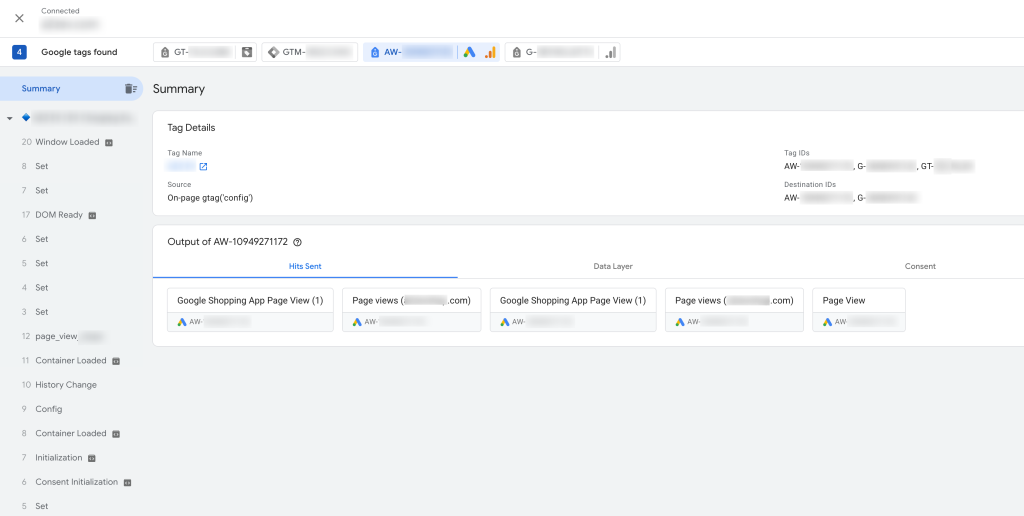
How many tags it found
Tag Assistant lists every Google tag it detects at the top of the page. Google Ads tags start with AW- and GA4 tags start with G-. More than one of either is worth asking about, especially if the IDs are different. An old Google Ads ID from a previous agency’s account is a common find.
Whether events fire more than once
Click an event like add_to_cart in the left-hand timeline. If the same event appears twice for a single action, or sends to the same conversion from different sources, you’ve found duplication.
Where each tag comes from
Tag Assistant shows whether a tag loaded through Google Tag Manager or directly on the page. Seeing the same tag loaded both ways usually means one setup was added on top of another.
A few caveats
- Checkout visibility. On Shopify, checkout tracking often runs through Customer Events, which operate in a sandbox. Tag Assistant won’t always show those tags clearly, so the checkout and purchase steps may need a closer look.
- Test purchases. The only way to see a purchase event is to complete an order, so use a discount code or a test order and refund it.
- Microsoft Ads. Tag Assistant only covers Google tags. For Microsoft Ads, the UET Tag Helper Chrome extension does the same job. If it shows more than one UET tag ID, you have the same problem there.
You don’t need to understand every detail on the screen. A screenshot showing three tags where there should be one is usually enough to start the right conversation with whoever manages your account.
What to Ask Before Your Next Handoff
If you’re vetting a new agency or hiring someone to take over your accounts, tracking should come up early in the conversation. A few questions worth asking:
“What will you do with the tracking that’s already installed?” A good answer involves auditing what exists before adding anything. A red flag is “we’ll just install our setup.”
“Will you remove old tags, and how will you do it safely?” Removing tags should be staged and tested, with a check for any gap in data afterward. Not a mass delete on day one.
“How will you confirm the numbers are accurate?” You want someone who reconciles platform data against your actual sales, not someone who takes the dashboard at face value.
“Will you document the setup?” A simple record of what’s installed, where it lives, and which conversion actions count will save the next person (and you) a lot of pain.
And if you’re the one leaving an agency, ask them for that documentation before access is removed.
How We Audit Tracking When We Inherit an Account
On this account, we didn’t install anything new until we understood what was already there. We listed every tag firing on the site, traced where each one came from (theme code, apps, GTM, Shopify Customer Events), and compared what each platform was reporting against actual orders.
From there, we picked one clean setup per platform, moved the others to secondary or removed them in stages, and watched the data closely for the following weeks to make sure nothing dropped out.
What happened?
Within two weeks revenue began to stabilize, and then consistently grew as we scaled existing campaigns and made improvements to the product feed. It isn’t glamorous work, and it doesn’t produce a big performance jump in week one. But every optimization after that point is based on numbers you can actually trust.
Check Your Tracking Setup
If your ad accounts have changed hands even once, it’s worth a quick look. Compare your platform-reported purchases against your store’s orders, and scan your conversion actions for duplicates. If the numbers don’t line up, you’re probably not looking at a performance issue. You’re looking at a tracking problem, and that’s the one to fix first.
High quality tracking is the bedrock of any ad account.
Relevant TSR Posts
- Shopify Thank You Page Upgrade Deadline: 7 Steps to Protect Your Google Ads Tracking
- Implementing Stape.io Server-side Tracking: Lessons Learned
- The Impact of Attribution: Recommending Third-Party Attribution Platforms for eCommerce Brands
- Why Your Shopify Store Is Sending The Wrong Item IDs to GMC
External Links
- UET Tag Helper – Microsoft’s version of Google Tag Assistant for diagnosing Microsoft tag issues
- A Guide To Google Tag Manager Preview Mode – Analytics mania blog
- Duplicate Transactions in Google Analytics and Google Analytics 4 Properties: The Check and Fix – Bounteous
