
Implementing Microsoft’s Stape Beta: What the Official Guides Miss
Over the past few years, server‑side tracking has quietly shifted from a “nice to have” into something much closer to table stakes. Between browser privacy changes, signal loss, and increasingly opaque attribution models, relying purely on client‑side tags is starting to feel like flying blind.
So when Microsoft Advertising opened a closed beta for Conversions API via Stape, we raised our hand almost immediately.
This post isn’t a step‑by‑step tutorial. It’s a practitioner’s account of what it was actually like to implement the beta, how the official documentation held up in the real world, and where things still need to improve.
Why We Cared About The Stape Beta
We weren’t chasing this beta out of curiosity alone. We were already seeing:
- Growing gaps between click activity and attributed conversions
- Increasing inconsistency between platforms
- Clients running modern CMS stacks (WordPress + GTM) where client‑side tracking is increasingly fragile
Google and Meta have been pushing server‑side approaches for some time now. Microsoft, historically, has lagged slightly behind. The introduction of a Stape‑supported Conversions API was a clear signal that Microsoft understands where the industry is heading.
Getting Access: What “Closed Beta” Really Means
The first thing to understand is that this was not a self‑serve feature.
There was no toggle inside Microsoft Ads. No public GTM template. No “enable beta” button.
Access required:
- A Microsoft Advertising partner relationship – In our case it was through Dignius.
- A formal request to Microsoft
- Back‑and‑forth confirmation before anything was enabled
Diginius acted as the bridge between our team and Microsoft, helping us get approved and relaying documentation and expectations as they became available.
The Guides We Were Given
Once access was approved, we were pointed to two main resources:
- The Microsoft Learn guide for UET Conversions API integration
- A Microsoft Confidential onboarding PDF focused specifically on server‑side GTM implementations
On paper, the documentation is thorough. It covers:
- Required prerequisites
- GA4 client configuration in a server container
- Importing a reference tag template
- Event inheritance and parameter mapping
But there’s an important, implicit assumption baked into both guides:
You already know how to run server‑side GTM.
These are not beginner documents. They’re supplemental material intended for teams who already understand server‑side tagging concepts and infrastructure.
The First Decision the Docs Gloss Over
Early on, Microsoft framed the setup choice as:
- Implement server‑side tracking on the website directly, or
- Implement it through Google / GTM
In reality, this is a meaningful architectural fork.
“Website‑side” implementations imply custom server logic, developer involvement, and higher long‑term maintenance. For a WordPress site already using GTM, server‑side GTM was the obvious choice, but only if we were willing to absorb the learning curve.
The documentation presents both options neutrally, but doesn’t meaningfully explain the trade‑offs.
Where the Server‑Side GTM Guide Gets Abstract
This is where theory meets reality.
The onboarding PDF walks through steps like:
- Configure a GA4 client
- Import a reference template
- Rely on GA4 event inheritance
None of this is wrong but much of it is conceptual rather than experiential.
For example:
- The reference template isn’t available in the public GTM gallery
- The template is explicitly described as not production‑maintained
- Debugging guidance is minimal
If you’ve never worked inside a server container before, this is where things start to feel uncomfortable.
The Token, the Tag, and the First Real Surprise
One of the earliest “aha” moments was realizing that:
- This does not reuse your existing UET tag
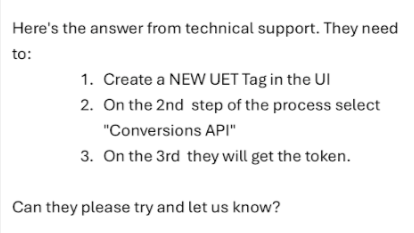
- A new UET tag is required specifically for Conversions API
- The API token is generated inside the Microsoft Ads UI and passed into GTM
This isn’t clearly emphasized up front, and it’s easy to assume you’re extending an existing setup rather than creating a parallel one.
After multiple back and forth emails with support we were finally informed that we simply needed to create a new UET tag:
Debugging Server‑Side
If you’re used to web GTM, server‑side debugging will feel alien at first.
- Events don’t “fire” – they’re received
- GTM Preview behaves differently
- You spend more time inspecting payloads than triggers
Nothing is inherently harder, but the mental model changes.
This is one of those areas where the documentation can’t fully prepare you, experience is the teacher.
Why Partner Support Was Essential
At several points, we hit questions that the docs simply didn’t answer:
- Should this tag fire on all GA4 events or only specific ones?
- Which parameters are mandatory vs optional in practice?
- How do we create an API token?
Diginius played a crucial role here, not by doing the implementation for us, but by interpreting the guides and validating assumptions with Microsoft’s product team.
Without that feedback loop, progress would have been slower.
What Worked Well
Once everything was configured correctly, the system behaved exactly as you’d hope:
- Event delivery was stable
- Payloads matched expectations
- Stape handled infrastructure cleanly
- Microsoft clearly received and processed events as intended
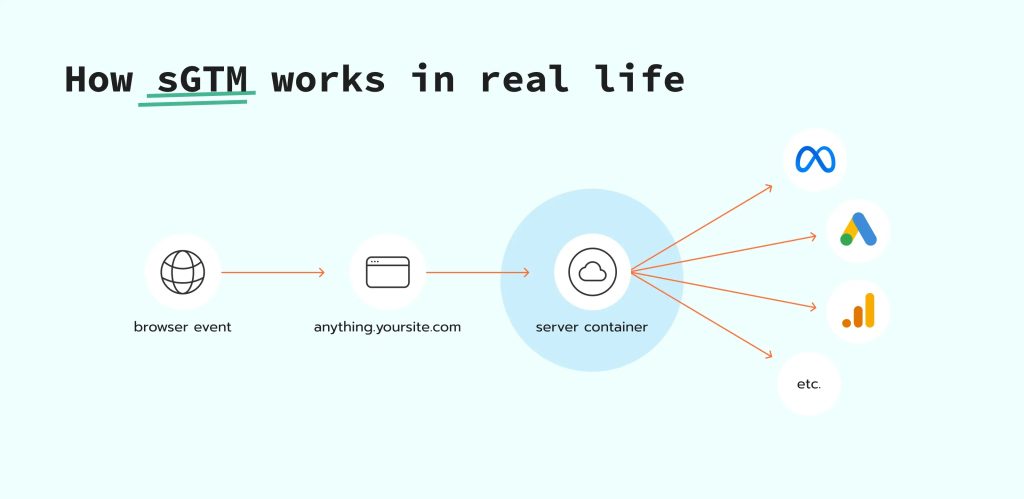
From a technical standpoint, the foundation is solid, and we’ll actually seen an increase in conversion events since implementation was completed.
Where Microsoft Still Needs to Improve
For this to move beyond early adopters, a few things need to happen:
- A public, maintained GTM server‑side template
- Clear migration paths from existing UET setups
- Better real‑world debugging examples
- Clearer separation between ID sync requirements and conversion payload requirements
None of these are insurmountable but they’re important.
Who This Is (and Isn’t) For Right Now
Good fit today
- Agencies
- Advanced in‑house teams
- Anyone already running server‑side tracking for Google or Meta
Not yet ideal
- First‑time GTM users
- Teams without partner support
- Anyone expecting a plug‑and‑play experience
Final Takeaway
Microsoft’s Stape Conversions API beta is an important step in the right direction.
The intent is clear. The infrastructure works. But today, success depends less on documentation and more on experience, experimentation, and access to support.
For teams willing to lean in early, the payoff is real. For everyone else, it’s worth watching closely because when this goes GA, server‑side won’t be optional anymore.
Relevant TSR Posts
- Implementing Stape.io Server-side Tracking: Lessons Learned
- How To Implement Server-Side Tagging
- Shopify’s Checkout Extensibility Upgrade Next Steps
External Resources
- Step-by-step guide on Microsoft Conversion API integration
- Microsoft Advertising Connection: Microsoft Advertising Connection is the solution that allows Stape to handle your oAuth tokens for the Microsoft platform.
